How to Convert Markdown to PDF with Custom Header and Footer
How do you add a custom header and footer to your PDF?
Converting Markdown to PDF is a common task for developers, technical writers, and increasingly, anyone working with AI-generated content. However, one problem comes up again and again:
If you've tried this before, you probably noticed that it’s not as simple as it sounds. In this guide, we’ll walk through the main approaches—and show you the easiest way to create professional PDFs with full header and footer customization.
Why Custom Headers and Footers Matter
Markdown is great for writing structured content, but when you convert it directly to PDF, the result is often too minimal.
This becomes a real issue when:
- You are exporting AI-generated reports (e.g. from ChatGPT or Claude)
- You need to include branding (logos, company names)
- You want consistent document layout for clients or internal reports
Without headers and footers, your PDF looks unfinished.
Method 1: Using CSS (@page) for Header/Footer
One of the most flexible ways to customize headers and footers is by using CSS with the @page rule.
Example:
@page {
  @top-center {
    content: "My Custom Header";
  }
  @bottom-center {
    content: "Page " counter(page);
  }
}
This approach is typically used with tools like Puppeteer or headless Chrome.
Pros
- Full control over layout
- Highly customizable
Cons
- Requires CSS knowledge
- Not all tools support it properly
- Can break depending on rendering engine
Best for advanced users who need full control
Please check this article:
Method 2: Using CLI Tools (e.g. md-to-pdf)

Another common approach is using command-line tools like md-to-pdf.
Example:
npx md-to-pdf input.md
Some tools allow header/footer customization through config or templates.
Pros
- Scriptable and automatable
- Good for developer workflows
Cons
- Setup required (Node.js, dependencies)
- Header/footer customization often needs CSS
- Font issues (especially for non-English text)
Best for developers comfortable with CLI tools
Please check this article:
Method 3: Using an Online Markdown to PDF Tool (Easiest)
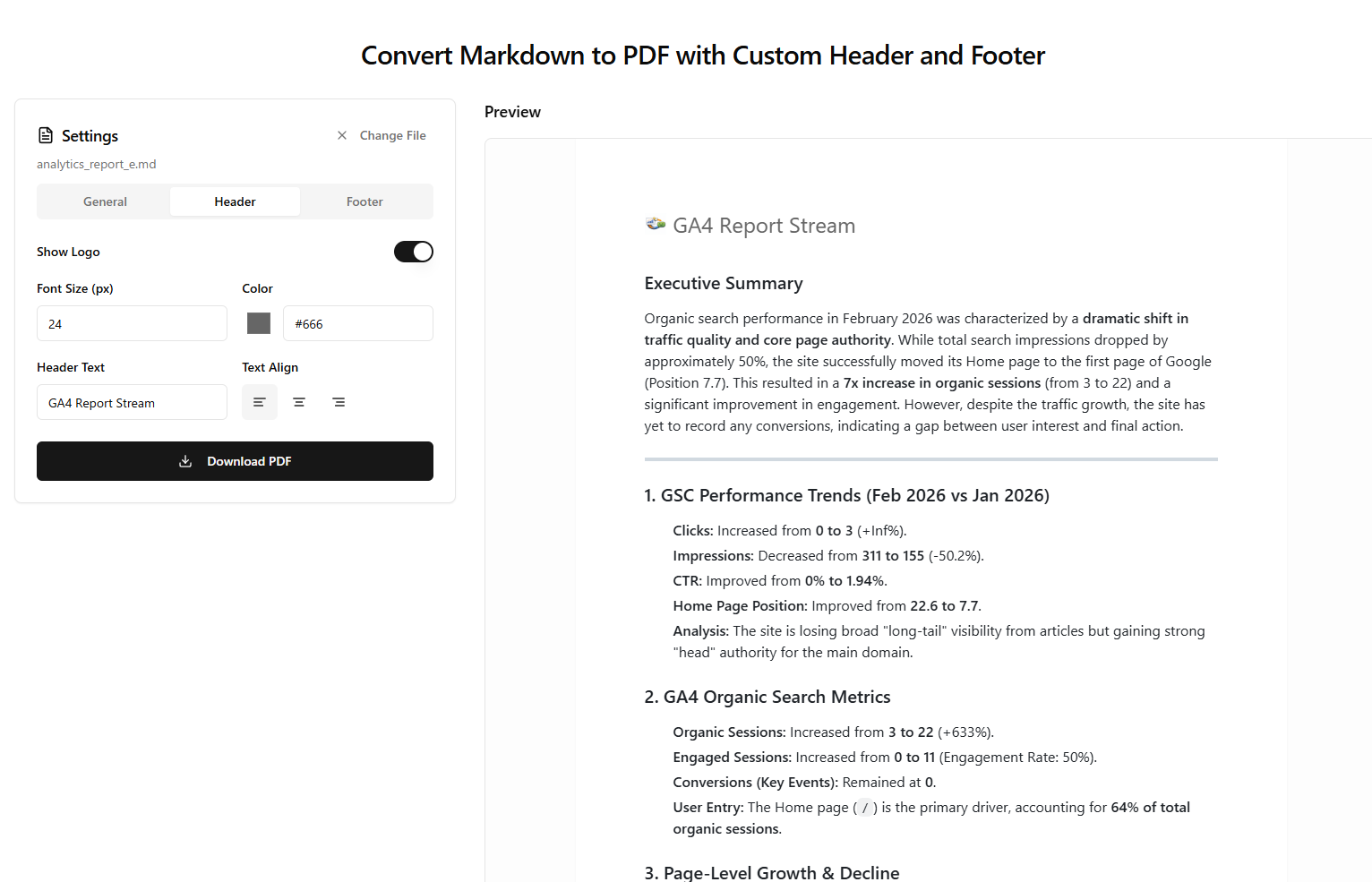
If you want a faster and simpler solution, an online tool is often the best choice.
Try it here: markdown-to-pdf
This tool is designed specifically to solve the header/footer problem without requiring any setup.
Key Features
- Add your logo to header and footer
- Insert custom text (titles, company name, etc.)
- Adjust font size for header and footer
- Works directly in your browser (no installation)
Why it’s useful
Instead of dealing with CSS or CLI configs, you can:
- Paste your Markdown
- Customize header/footer visually
- Export a clean, professional PDF
Especially useful for AI-generated reports and business documents
Comparison of Methods
| Method | Difficulty | Flexibility | Best For |
|---|---|---|---|
CSS (@page) | High | High | Advanced users |
| CLI Tools | Medium | Medium | Developers |
| Online Tool | Low | Medium | General users |
Which Method Should You Choose?
- If you need maximum control → use CSS (
@page) - If you want automation → use CLI tools
- If you want speed and simplicity → use an online tool
For most users, especially when working with AI-generated Markdown, an online tool is the fastest way to get professional results
Final Thoughts
Adding custom headers and footers to Markdown PDFs can quickly become complicated if you rely on CSS or CLI tools.
But in many cases, you don’t need that complexity.
If your goal is to create clean, branded PDFs quickly, using a tool like markdown-to-pdf can save you a lot of time.
Please also check:
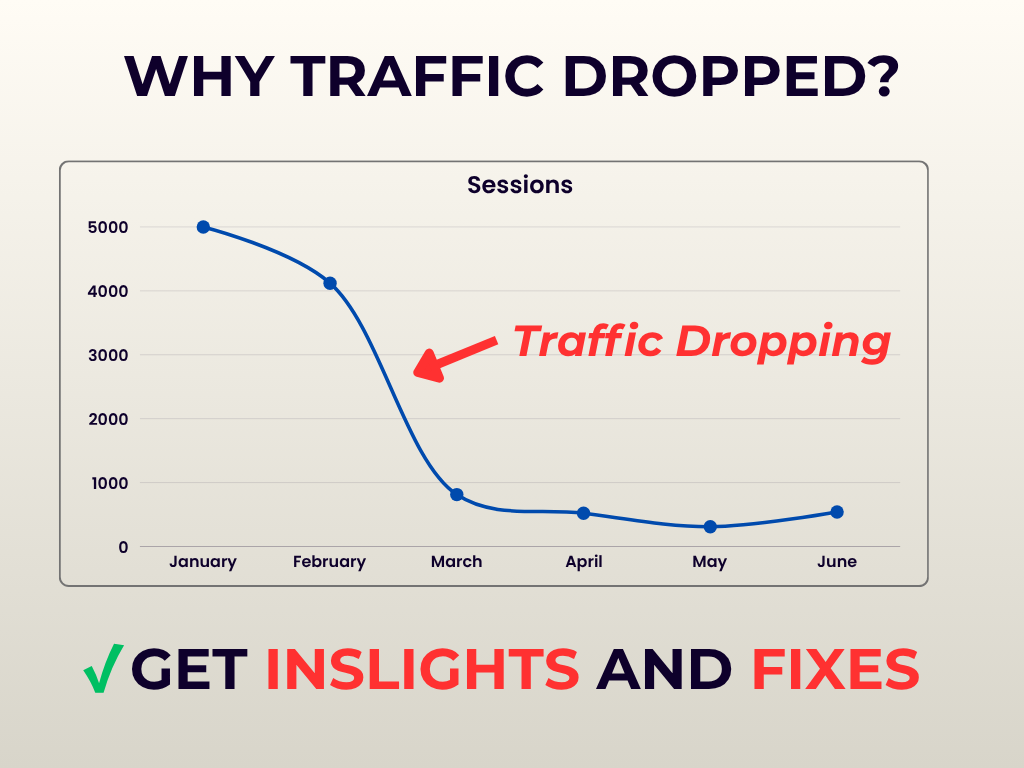
I will analyze your GA4 and GSC and provide actionable insights
Find why your traffic dropped and get exact fixes.
Fiverr →